

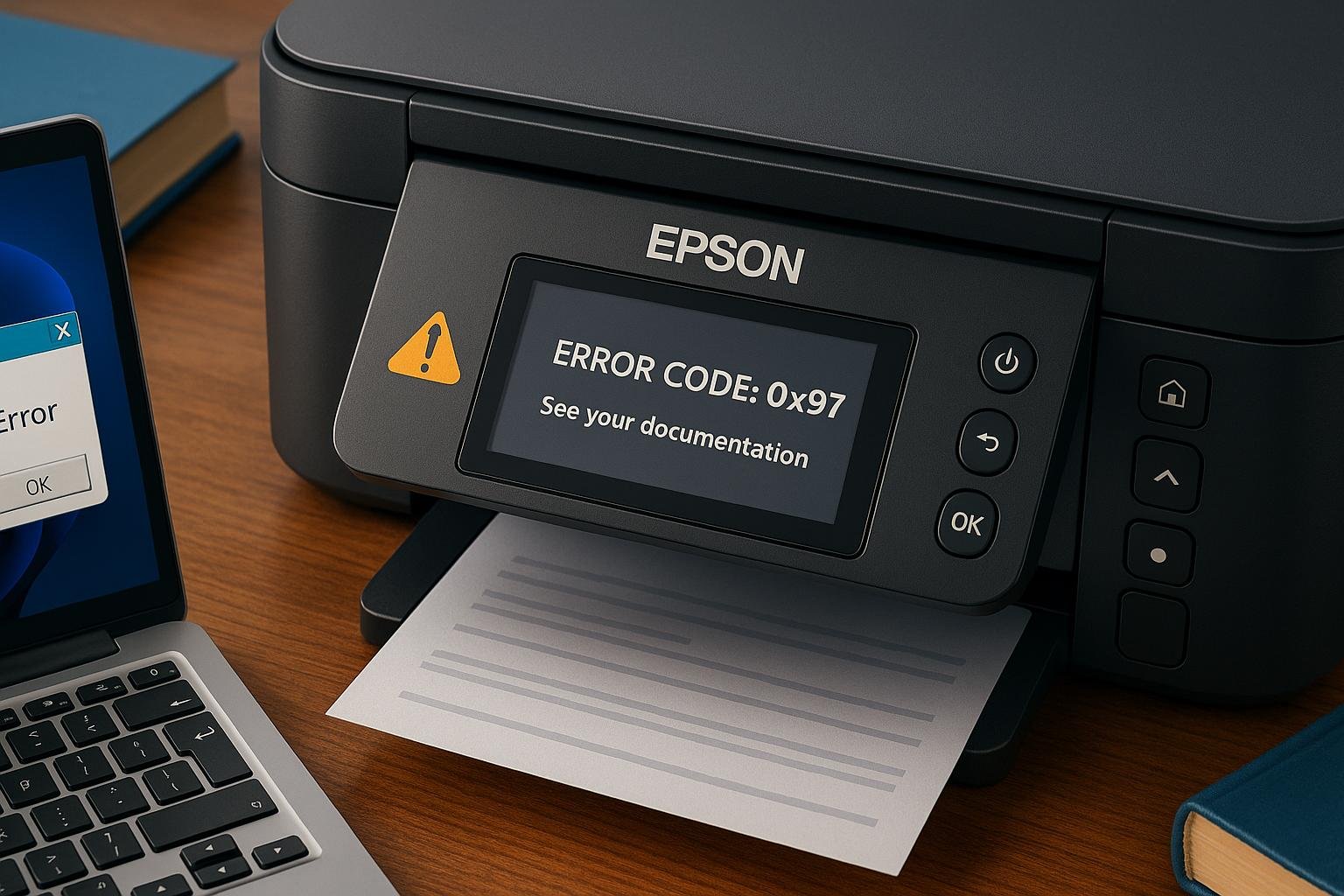
If your Epson printer decides to flash an error code just as you’re about to print a deadline-sensitive document — congratulations, you’ve unlocked the modern rite of passage: decoding printer errors. While Windows 11 tries to help, the errors from Epson printers often speak their own language.
This detailed guide helps you interpret Epson printer error codes — especially those you’ll encounter on Windows 11 — so you can fix issues quickly and get back to printing resumes, invoices, or that final paper at 2 a.m.
🧠 Understanding Epson Error Codes
Epson error codes fall into three broad categories:
– Hardware/Device Errors (from the printer itself)
– Windows System Errors (driver/configuration issues)
– Communication Errors (Wi-Fi, USB, spooler conflicts)
You’ll typically see errors:
– On the Epson printer LCD panel
– Via Windows 11 pop-ups
– In the Epson Status Monitor utility
📋 Common Epson Printer Error Codes (Windows 11 + LCD Display)
| Error Code | Message | Likely Cause | Fix Suggestion |
|---|---|---|---|
| 0x97 | Internal Hardware Error | Motherboard, printhead, or sensor fault | Power cycle printer; may need servicing |
| 0x10 | Scanner Mechanism Failure | Obstructed or jammed scanner | Open scanner lid, remove debris |
| 0x9A / 0x9B | General Printer Error | Internal electronics or jam | Check for paper jams or obstructions |
| 0xF1 | Printhead Not Recognized | Misaligned head or faulty chip | Realign head, reseat cartridge |
| 0xFA | Ink Cartridge Error | Cartridge not seated or incompatible | Reseat or replace cartridge |
| 0x60 | Paper Jam Detected | Physical jam or false sensor reading | Clear jam, clean sensors |
| E-01 | Fatal Printer Error | Severe internal failure | Reset printer or seek service |
| E-10 | Ink Pad End of Service Life | Waste ink pad full | Use Epson reset utility or service center |
| E-11 | Maintenance Box Full | Ink box needs replacing | Replace maintenance box |
| E-13 | Ink Cartridge Cannot Be Recognized | Cartridge issue | Replace with genuine Epson ink |
💻 Windows 11 Specific Epson Errors
| Windows Error Message | Explanation | Suggested Fix |
|---|---|---|
| “Driver unavailable” | Missing or incompatible driver | Reinstall Epson driver from official site |
| “Spooler service not running” | Print queue halted | Restart print spooler from Services app |
| 0x00000709 | Default printer cannot be set | Registry permission issue |
| 0x0000007e | Driver conflict | Uninstall conflicting drivers, reinstall |
| “Offline” status in Windows | Network or USB connection lost | Reconnect USB, or reconnect to Wi-Fi |
| “Cannot communicate with the printer” | USB/Wi-Fi link lost | Run Windows Troubleshooter or Epson ScanFix |
🔧 How to Fix Common Epson Errors on Windows 11
🛠️ Step 1: Check the Connection
– USB: Try different port or cable
– Wi-Fi: Restart router and printer, reconnect from Epson menu
🛠️ Step 2: Reinstall or Update the Driver
– Visit Epson Support
– Download Windows 11 compatible drivers
🛠️ Step 3: Run the Print Troubleshooter
– Settings → System → Troubleshoot → Other Troubleshooters → Run Printer
🛠️ Step 4: Reset Epson Status Monitor Errors
– Open Epson Status Monitor (from Control Panel or tray)
– Check error, click Clear, Resume, or Reset
🛠️ Step 5: Use Epson Adjustment Program
– For ink pad, waste tank, or service resets (requires download from Epson technician tools)
🔄 Resetting Epson Printer (Manual Hard Reset)
- Turn off the printer
- Press and hold Stop + B&W Copy + Power (varies by model)
- Wait until screen shows initialization
- Release buttons
Or use Settings > Restore Default Settings from the printer’s LCD menu.
🔍 Epson Status Monitor Symbols (What They Mean)
| Symbol | Meaning | Action Required |
|---|---|---|
| 🟡 Yellow Triangle | Warning / Low Ink | Replace soon |
| 🔴 Red Circle X | Critical Error | Stop and troubleshoot immediately |
| 🖨️ Printer Icon | Ready / Idle | All systems normal |
| 🔌 Plug Icon | Connection Lost | Reconnect via USB or Wi-Fi |
🧼 Preventive Maintenance for Epson Printers
✅ Clean printhead using built-in maintenance tool every 2–3 weeks
✅ Use genuine ink cartridges to avoid chip errors
✅ Turn off printer properly (not just unplug)
✅ Update firmware occasionally to prevent errors with Windows 11 updates
🛑 When to Contact Epson Support
| Condition | Self-Fixable | Contact Support |
|---|---|---|
| Ink pad full (E-10/E-11) | ❌ | ✔️ |
| Fatal error (E-01, 0x97) | ❌ | ✔️ |
| Cartridge recognition error | ✔️ | ❌ |
| Driver missing/“Driver Unavailable” | ✔️ | ❌ |
🎯 Final Thoughts
Whether it’s an Epson internal error code or a Windows 11 driver conflict, most printer issues can be resolved with a little patience, a soft reset, and the right tools. With this guide in hand, you can decode those scary error messages and get your printer humming again in no time.
So next time your Epson blinks out a message like “0x97” — don’t panic. Just fix it like a pro and print on. 🖨️