

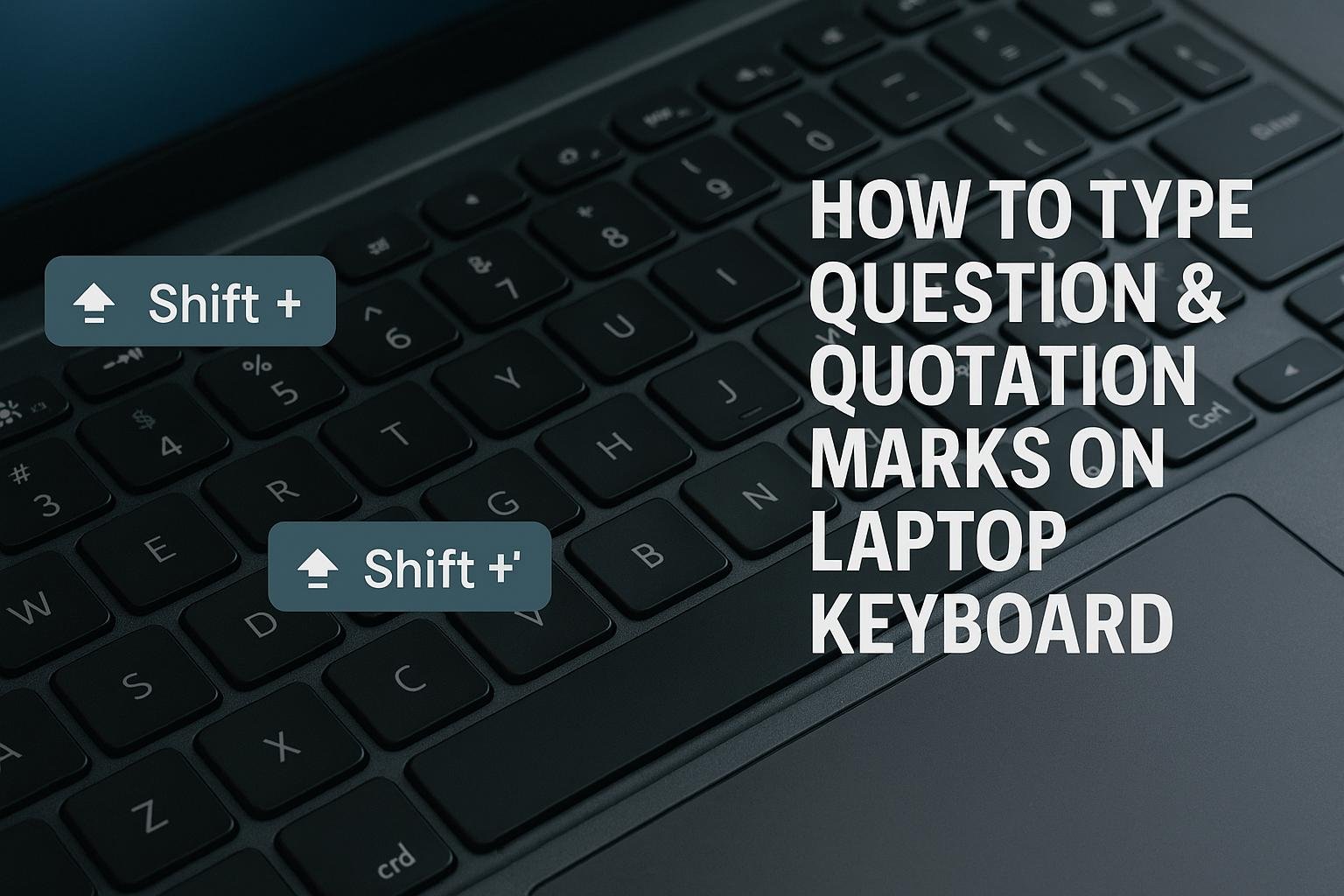
🔤 Ever stared at your keyboard wondering where the question mark or quotation marks disappeared to? You’re not alone. Whether you’re using a Windows laptop, MacBook, or a multilingual keyboard layout, typing these everyday punctuation marks can be oddly confusing. Let’s break it down clearly — no guesswork, no geek-speak.
❓ How to Type a Question Mark on a Laptop
✅ For Standard English Keyboards (US/UK Layout)
| OS | Shortcut/Key | Notes |
|---|---|---|
| Windows | Shift + / |
The / key is usually right next to the Right Shift key |
| Mac | Shift + / |
Same location as on Windows |
| Linux | Shift + / |
Also consistent across distros |
🧭 Where to look: Bottom-right of your keyboard — just above the Right Ctrl or beside Shift.
🌍 How to Type a Question Mark on International or Non-English Keyboards
| Keyboard Layout | Shortcut | Notes |
|---|---|---|
| Spanish (ES) | Shift + ' (key next to 0) |
Normal ? is here |
| French (AZERTY) | Shift + , |
The ? is on the same key as , |
| German (QWERTZ) | Shift + - |
Found on the ß key |
🔧 If it’s not working, go to Settings > Language & Input and ensure you’re using the correct keyboard layout.
🗨️ How to Type Quotation Marks on Laptop
✅ Standard Double and Single Quotes
| Mark Type | Shortcut | Symbol Example |
|---|---|---|
| Double Quotes | Shift + ' (apostrophe) |
“This is quoted.” |
| Single Quote | ' |
‘Single quoted’ |
📝 These are also known as straight quotes and are usually found right next to the Enter key.
🎨 Typing Curly or Smart Quotes (Optional Formatting)
These are often auto-inserted by word processors like Microsoft Word:
| Curly Quote Type | Windows Shortcut | Mac Shortcut | Output |
|---|---|---|---|
| Left Double Quote | Alt + 0147 (numpad) |
Option + [ |
“ |
| Right Double Quote | Alt + 0148 (numpad) |
Option + Shift + [ |
” |
| Left Single Quote | Alt + 0145 |
Option + ] |
‘ |
| Right Single Quote | Alt + 0146 |
Option + Shift + ] |
’ |
⚠️ Note: These only work in apps that support smart typography (Word, Pages, etc.).
🔍 Troubleshooting Tips
- 🧹 Keyboard language mismatch? Use
Win+Spaceto switch between layouts on Windows. - 🧑💻 Mac not working properly? Go to
System Settings > Keyboard > Input Sourcesand confirm you’re usingU.S.or your native layout. - 🌐 Online solution: Use Google’s on-screen keyboard or copy-paste from websites if needed.
🧠 Quick Summary Table
| Action | Shortcut/Key | Works On |
|---|---|---|
Type ? (Question Mark) |
Shift + / |
All English layouts |
Type " (Double Quote) |
Shift + ' |
All English layouts |
Type ' (Single Quote) |
' |
All keyboards |
| Curly Quotes (Windows Alt Code) | Alt + 0147, 0148, etc. |
Word/Apps Only |
| Language Layout Switch (Win) | Win + Space |
Windows Only |
🏁 Final Thoughts
Typing question marks and quotation marks shouldn’t feel like solving a riddle. With just a couple of keys (and knowing where to look), you’ll be punctuating like a pro.
So the next time someone texts you “why so many commas??”, you’ll have the confidence to answer — with perfectly typed quotation marks and a grammatically glorious question mark.
⌨️ Type easy. Speak clearly. Quote accurately.